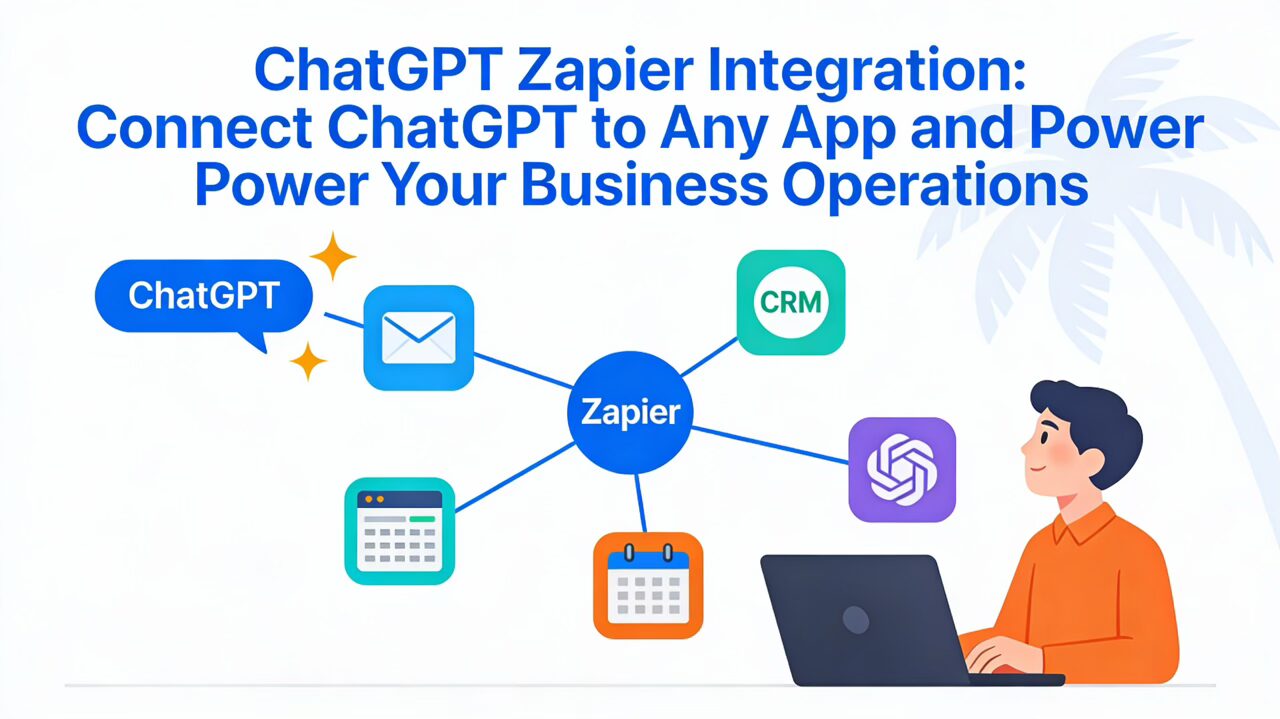
If you’re reading this, there’s a good chance you’re already using ChatGPT—or you’ve at least seen what it can do. But knowing ChatGPT is powerful and actually wiring it into your day‑to‑day tools are two very different things.
That’s where the ChatGPT Zapier integration (and tools like Make, formerly Integromat) come in. They let you connect ChatGPT to the apps you already live in—Gmail, Google Sheets, Slack, your CRM—without needing to write a line of code.
When the integration isn’t set up correctly (or isn’t set up at all), you end up with:
- Leads sitting in inboxes instead of your CRM
- Support tickets answered hours late instead of instantly
- Follow‑ups that never go out because nobody had time to write them
That’s real money left on the table.
In this guide, you’ll get:
- A quick way to check if you’re a good fit for ChatGPT + Zapier automation
- The most common reasons these integrations break or underperform
- A step‑by‑step, business‑owner‑friendly setup and troubleshooting guide
- Clear signals for when it’s time to call in Devbo instead of wrestling with it alone
Quick Diagnosis: Is This Your Situation?
If any of these sound familiar, you’re in the right place.
You’re probably a match for ChatGPT Zapier integration help if:
- You’ve tried to set up a Zap with ChatGPT and keep getting confusing errors or blank responses.
- You have leads or form submissions that should trigger AI‑written emails, but nothing is happening.
- You’re manually copying text from emails, Slack, or forms into ChatGPT to summarize, rewrite, or respond.
- Your team spends hours each week writing similar replies (quotes, follow‑ups, FAQs) that could be templatized.
- You connected OpenAI to Zapier once, but you’re not confident it’s secure, compliant, or cost‑controlled.
- You’re hearing about ChatGPT MAKE (formerly Integromat) integration and you’re not sure if Zapier or Make is the better fit.
If you’re nodding yes to more than one of those, you’re leaving time and revenue on the table that automation could recapture.
Common Causes of ChatGPT Zapier Integration Problems
Most issues fall into a handful of patterns. You don’t need to be a developer to understand them—you just need to know where to look.
1. OpenAI API Key or Billing Issues
Zapier and Make connect to ChatGPT using your OpenAI API key—not your regular ChatGPT Plus login. If the key is missing, wrong, or out of credit, your workflows fail silently or return errors.
Common signs:
- “Invalid API key” or “Authentication error” in Zapier task logs
- Zaps that suddenly stop working after running fine for weeks
- ChatGPT steps that show a red error icon while other steps succeed
2. Using the Wrong ChatGPT Action in Zapier
Zapier offers several OpenAI/ChatGPT actions (like Conversation, Analyze Text, Write an Email, etc.). If you choose the wrong one, you might get odd outputs or no useful result at all.
Example mistakes:
- Using a short “write an email” action where you actually need a full Conversation with context
- Forgetting to map the incoming data (like email body or form responses) into the prompt field
- Not telling ChatGPT clearly what format you want back
3. Triggers Not Firing or Pulling the Wrong Data
ChatGPT can only act on what Zapier sends it. If your trigger step is broken, everything downstream looks like a ChatGPT issue (even when it’s not).
Typical issues:
- The Zap never turns on or stays in “draft”
- The trigger app account got disconnected (new password, permissions changed, etc.)
- The wrong mailbox, spreadsheet, pipeline, or form is connected
4. Prompt Design That Confuses ChatGPT
Even if the connection is perfect, weak prompts = weak automation. ChatGPT needs clear instructions, constraints, and examples to behave consistently in an automated workflow.
Problem prompts often:
- Don’t tell ChatGPT who it should “act as” (e.g., friendly support rep vs. formal accountant)
- Forget to specify tone, length, or format
- Don’t include enough context from the trigger data (e.g., missing customer name or previous messages)
5. Output Not Mapped Correctly to the Next App
Your Zap might be working and ChatGPT might be returning great content—but if you never map the output field into the next action (like Gmail, Slack, or your CRM), nothing visible happens.
You’ll see:
- Zaps that show as “success” but send empty emails or notes
- CRM tasks created with generic titles and no real description
- Slack messages that post, but without the AI‑generated body
6. Rate Limits, Volume Spikes, or Cost Surprises
Once the integration starts working, it often works too well. A sudden surge in volume can:
- Hit OpenAI rate limits (leading to intermittent failures)
- Burn through API credits faster than expected
- Slow down other automations sharing the same account
This is good news (it means automation is doing real work), but it needs planning and safeguards.
Step‑by‑Step Fix Guide: Getting ChatGPT Working With Zapier (and Make)
This section walks through a practical, linear troubleshooting and setup flow. You can follow it to set up a new integration or to fix a broken one.
If at any point you feel out of your depth, you can jump to “When DIY Fixes Become Risky (And When to Call Devbo)” and let our team take it from there.
Step 1 – Confirm Your OpenAI Account, API Key, and Billing
What to check
- Log in to your OpenAI account (the same one you want Zapier/Make to use).
- Go to your API keys area.
- Confirm:
- You have an active secret API key.
- Your billing is set up and you have usage quota/credit.
How to check it in Zapier
- In Zapier, go to Apps → ChatGPT (OpenAI) → Connections.
- Make sure there is an active connection using your current API key.
- If in doubt, click Reconnect or Add new connection, then paste a fresh API key.
Good vs. bad
- Good: Zapier shows a green checkmark next to your OpenAI/ChatGPT connection; test tasks succeed.
- Bad: Errors like “authentication failed,” “invalid API key,” or tasks that never leave “stuck” status.
If this still doesn’t work, skip down to When to Call Devbo—API and billing settings are easy to break and frustrating to troubleshoot solo.
Step 2 – Verify Your Trigger Is Actually Firing
Before blaming ChatGPT, make sure your Zap starts correctly.
What to check
- In the Zap editor, look at your trigger step (e.g., “New Email in Gmail,” “New Row in Google Sheets,” “New Form Submission”).
- Click Test Trigger and see if Zapier can pull in a real, recent sample.
Signs of trouble
- Zapier can’t find any recent data (even though you know it exists).
- The wrong mailbox, sheet, or form is connected.
- The Zap is turned off or stuck in draft.
Good vs. bad
- Good: Test Trigger returns a recent, real example that matches the scenario you’re automating.
- Bad: Zapier says “We couldn’t find any data,” or it pulls in an unrelated test record.
If your trigger isn’t working, fix that first—ChatGPT can’t help if it never receives anything.
Step 3 – Choose the Right ChatGPT Action and Connect It Properly
Now, we bring ChatGPT into the picture using Zapier’s OpenAI app.
What to set up in Zapier
- Under your trigger step, click + Add step.
- Search for OpenAI (ChatGPT).
- Start with a flexible action like Conversation or Analyze Text, depending on your use case:
- Summaries, Q&A, categorizations → Analyze Text or Conversation
- Email drafting → Write an Email or Conversation with a clearly formatted prompt
- Select your OpenAI connection (from Step 1).
Connecting the data
Inside the action step, you’ll see a prompt or message field. This is where most people go wrong.
- Type clear instructions such as:“Act as a friendly customer support rep for a small Florida‑based home services business. Read the customer email below and write a helpful, concise reply in 2 short paragraphs. Use the customer’s first name. Email: {{Email Body}}”
- Use Zapier’s data picker to insert the actual fields from your trigger:
- Customer name
- Email body
- Subject line
- Order details, etc.
Good vs. bad
- Good: The prompt clearly explains the role, tone, format, and includes real data from your trigger.
- Bad: The prompt just says “Write a reply to this email” with no context or mapped fields.
Step 4 – Map ChatGPT’s Output Into a Real Action (Email, CRM, Slack, etc.)
This is where your automation starts paying off.
Common “next steps” after ChatGPT
- Send an email: Gmail, Outlook, or another email service.
- Create/update a record: CRM like HubSpot, Pipedrive, or a simple Google Sheet.
- Notify your team: Slack, Microsoft Teams, or SMS.
What to do
- Add a new action step after ChatGPT.
- Choose your app (Gmail, Slack, CRM, Google Sheets, etc.).
- In the message/content/body field, insert the output from the ChatGPT step. It’s usually something like:
Choices Message ContentResponse
- Add any static text you need around it (e.g., greetings, signatures).
Good vs. bad
- Good: Test run shows a full, AI‑generated message in your email draft, Slack message, or CRM note.
- Bad: The message body is empty or only contains your static text without the AI output.
If everything looks right in testing but fails when live, you might be hitting limits or inconsistent data formats—this is a good moment to bring in Devbo to harden the workflow.
Step 5 – Test, Refine, and Add Guardrails
Once the basics work, you’re not done yet. Now you want reliable, on‑brand outputs.
What to test
- Different kinds of input: short emails vs. long ones, polite vs. upset customers, different products/services.
- Edge cases: missing names, empty form fields, strange formatting.
Refinements to add
- Tighten your prompts:
- Specify tone (“professional but warm,” “simple, plain English”).
- Specify format (“3 bullet points,” “one paragraph summary,” “JSON only”).
- Add filters:
- Only run ChatGPT for certain lead sources or high‑value deals.
- Add cost controls:
- Use shorter prompts and responses where possible.
- Consider separate OpenAI keys/accounts for testing vs. production.
If this still doesn’t behave consistently, especially on real customer data, skip ahead to How Devbo Solves ChatGPT Zapier Integration Problems Differently.
Zapier vs. Make (formerly Integromat): Which Should You Use?
Both Zapier and Make can connect ChatGPT to any app (or at least almost any app you care about). The right choice mostly comes down to complexity and how your business works.
When Zapier Is Usually the Better Fit
Zapier is often best for small businesses when:
- You want fast, straightforward automations between popular apps.
- Your team is already somewhat familiar with Zapier.
- You’re mostly automating:
- Email replies
- Lead handling
- Simple CRM updates
- Basic content generation
It shines when you want to launch something quickly and iterate.
When Make (formerly Integromat) Starts to Make Sense
ChatGPT MAKE (formerly Integromat) integration becomes attractive when:
- You have more complex, branching workflows (multiple paths, lots of conditions).
- You’re handling higher volumes or more technical data transformations.
- You need more granular control over scenario logic and error handling.
Make’s visual interface is great for power users and technical implementers who want to see every branch of a scenario.
If you’re not sure which way to go, Devbo can assess your stack and recommend whether Zapier, Make, or a mix of both is right for your operations.
When DIY Fixes Become Risky (And When to Call Devbo)
Some parts of this setup are safe to tinker with. Others can get costly or risky fast.
Here’s when it makes sense to bring in Devbo.
1. You’re Handling Sensitive or Regulated Data
If your Zapier or Make workflows touch:
- Protected health information (PHI)
- Financial data
- Legal documents
- Anything with strict compliance requirements
…you’ll want a professional to architect your data flows, redactions, and storage. Misconfigurations here can create real liability.
2. You’re Routing Live Customer Communications
If ChatGPT is:
- Responding directly to customers
- Posting to public channels (social media, review responses, etc.)
- Updating records that your team relies on daily
You need clear safeguards so the AI stays on‑brand, accurate, and respectful. That often means:
- Additional validation and approvals
- Strong prompt engineering
- Smart fallbacks when ChatGPT is unsure
3. The Workflows Touch Mission‑Critical Systems
When your automations are tied into:
- Your CRM
- Your project management system
- Your billing or proposals
- Your website or booking system
…small mistakes can ripple out into lost deals, wrong invoices, or broken experiences.
4. Troubleshooting Is Burning Hours You Don’t Have
If you’ve spent more than a couple of focused sessions wrestling with this and still don’t feel confident, it’s usually cheaper to let a specialist step in.
If you’d rather have a team handle this for you, Devbo can step in, untangle your current Zapier/Make setup, and rebuild it so it “just works” without breaking other parts of your stack.

How Devbo Solves ChatGPT Zapier Integration Problems Differently
Devbo approaches ChatGPT Zapier integration (and Make scenarios) like any other critical system in your business:
- Audit
- Review your current Zapier/Make setup, triggers, actions, and connections
- Map where ChatGPT fits in—and where it shouldn’t
- Check OpenAI billing, rate limits, and data flow
- Diagnose and Stabilize
- Fix broken triggers and misconfigured actions
- Clean up prompts so outputs are consistent and on‑brand
- Correct field mappings so AI outputs end up in the right places
- Optimize and Harden
- Add guardrails to prevent weird edge‑case behavior
- Implement logging and basic monitoring so you can see what’s happening
- Reduce unnecessary API calls to control costs
- Expand With a Roadmap
- Identify additional opportunities to power business operations with ChatGPT:
- Lead qualification
- Proposal drafting
- Customer support triage
- Review reply automation
- Prioritize automations that return the most time and revenue first
- Identify additional opportunities to power business operations with ChatGPT:
Devbo is Florida‑based but works with clients nationwide. The team lives in the intersection of WordPress, SEO, Google Business Profiles, and AI automation, so the solutions are built with your overall marketing and web stack in mind—not in a silo.
Real‑World Examples of ChatGPT + Zapier/Make in Action
Here are a couple of anonymized scenarios that look a lot like what our clients bring to Devbo.
Example 1: Local Service Business – Lead Follow‑Up Automation
A home‑services company was losing leads because inquiries came in across multiple forms and inboxes. The owner tried to keep up but couldn’t respond quickly enough.
Devbo implemented:
- A central “New Lead” Zap that pulls from website forms and Google Business Messages into a sheet and CRM.
- A ChatGPT step that drafts a personalized, on‑brand reply based on the service type, location, and availability.
- An email/SMS action that sends or queues the reply within minutes.
Result: faster responses, fewer missed opportunities, and a cleaner, trackable pipeline—without the owner living in their inbox.
Example 2: Multi‑Location Professional Practice – Review and Reputation Workflow
A multi‑location practice was drowning in reviews and post‑appointment feedback, with no systematic follow‑up.
Devbo built a workflow that:
- Watches for new reviews and feedback events.
- Uses ChatGPT to:
- Draft polite, platform‑appropriate review responses.
- Summarize themes in negative feedback for internal improvement.
- Routes sensitive or complex cases to a human with AI‑generated talking points.
Result: consistent public responses, improved internal visibility, and a clearer feedback loop to leadership—without hiring a full‑time reputation manager.
FAQs About ChatGPT Zapier Integration
1. Do I need to pay for ChatGPT to use it with Zapier or Make?
You don’t necessarily need ChatGPT Plus, but you do need an OpenAI account with API access and billing enabled. The Zapier and Make connections use the API, which is billed separately from the ChatGPT Plus subscription you might use in the browser.
2. Is Zapier or Make better for integrating ChatGPT?
For most small businesses, Zapier is the easier starting point—especially for straightforward workflows like email replies, lead automation, and summaries. Make (formerly Integromat) is excellent for more complex, branching workflows or when you need deeper control over data and logic. In many stacks, there’s a place for both.
3. Can I connect ChatGPT to “any” app?
You can connect ChatGPT to any app that Zapier or Make supports—or any app that exposes a usable API/webhook. For most businesses, that covers email, calendars, CRMs, spreadsheets, chat tools, forms, and many niche platforms. When something isn’t available out of the box, Devbo can often bridge the gap with webhooks or custom connectors.
4. Is it safe to send my customer data to ChatGPT?
It depends on your configuration, your compliance requirements, and how you handle data retention. Properly designed workflows can limit what data is sent, anonymize or mask sensitive fields, and comply with your policies. If you’re unsure, this is exactly the kind of situation where it makes sense to have Devbo review your setup before going live.
5. How much does it cost to run ChatGPT automations?
Costs come from two places:
- Your automation platform (Zapier/Make plan).
- Your OpenAI API usage (per token/model).
Done well, these costs are usually tiny compared to the hours saved and revenue recovered. Done poorly, you can rack up unnecessary calls. Devbo designs prompts and workflows with cost‑efficiency in mind from day one.
6. How long does it take to get a basic ChatGPT Zapier integration live?
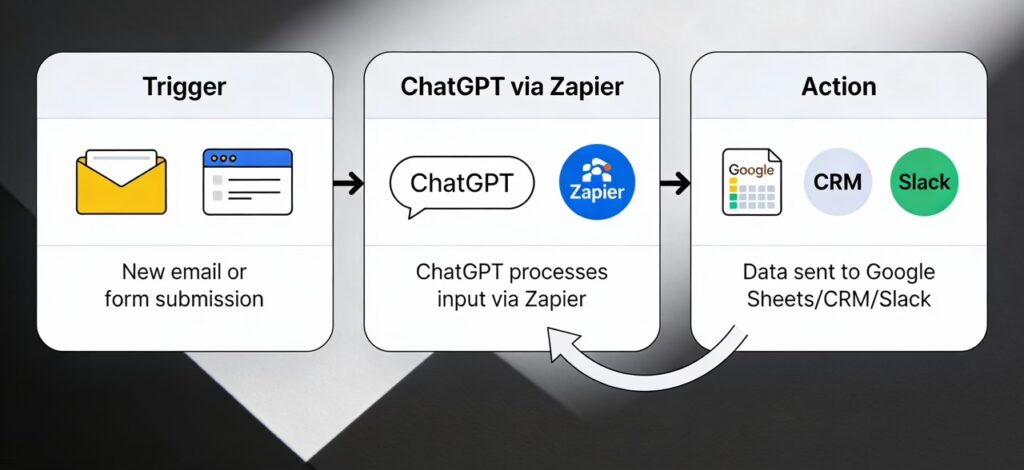
A simple “trigger → ChatGPT → action” workflow (for example, summarizing emails or drafting follow‑ups) can often be prototyped in a day and refined over a week of real‑world testing. More complex, multi‑step automations may take longer, especially if we’re integrating with your CRM, WordPress site, or other core systems.
7. When should I stop DIY’ing and bring in an expert?
If your automations touch live customers, money, compliance, or core systems—or you’ve already burned several focused sessions trying to make it work—bringing in Devbo usually saves both time and risk. When you’re worried about “breaking something in production,” that’s your signal.
Conclusion: This Is Fixable (And You Don’t Have to Do It Alone)
A reliable ChatGPT Zapier integration can quietly take entire chunks of work off your plate—email replies, lead follow‑ups, summaries, internal notes, and more. When it’s misconfigured, though, it just feels like yet another half‑finished tech project.
The good news: everything in this guide is fixable. You can follow the steps, stabilize your triggers, connect ChatGPT correctly, and start to power business operations with ChatGPT in a way that actually sticks.
And if you’d rather skip the trial‑and‑error and have a team that lives in WordPress, SEO, Google Business Profiles, and AI automation handle it for you, book a quick call with Devbo. We’ll review your current setup, suggest practical improvements, and, if you’d like, implement the automations so they work reliably in the real world—not just in demos.