Your contact form submission comes in. A potential customer fills it out and hits send. On your end, nothing appears in your inbox. Silent. Gone.
When WordPress email isn’t sending, you’re losing leads. Research shows that the average business loses up to $50,000 per month when leads slip through the cracks due to poor communication systems. For a small business, that’s a revenue leak you can’t ignore.
The good news? This is one of the most fixable WordPress problems out there. Most cases come down to a handful of specific causes, and once you identify yours, the solution is usually straightforward.
Over the next 10 minutes, you’ll learn exactly why WordPress email fails, walk through a step-by-step diagnostic and fix guide, and know precisely when it makes sense to bring in a professional. Whether you tackle this yourself or decide to hand it off to us, you’ll move forward with confidence.
Quick Diagnosis: Is This Your Situation?
Before we dive into fixes, let’s confirm what’s actually happening. Check any of these that ring true:
- You submit a contact form on your own site and never receive the email—not in your inbox, not in spam.
- Form entries show up in your form plugin’s dashboard, but no notification email arrives.
- WooCommerce order confirmations or password reset emails are missing or only some recipients get them.
- You receive emails sporadically, not consistently.
- Emails were working fine until you changed hosting, updated a plugin, or switched DNS providers.
- Emails arrive, but they’re buried in spam folders instead of your primary inbox.
- You’re seeing a “mail() function disabled” error, or your host support mentioned SMTP during a conversation.
If one or more of these describes you, keep reading. You’re in the right place.
Why Is WordPress Email Not Sending? The Three Failure Modes
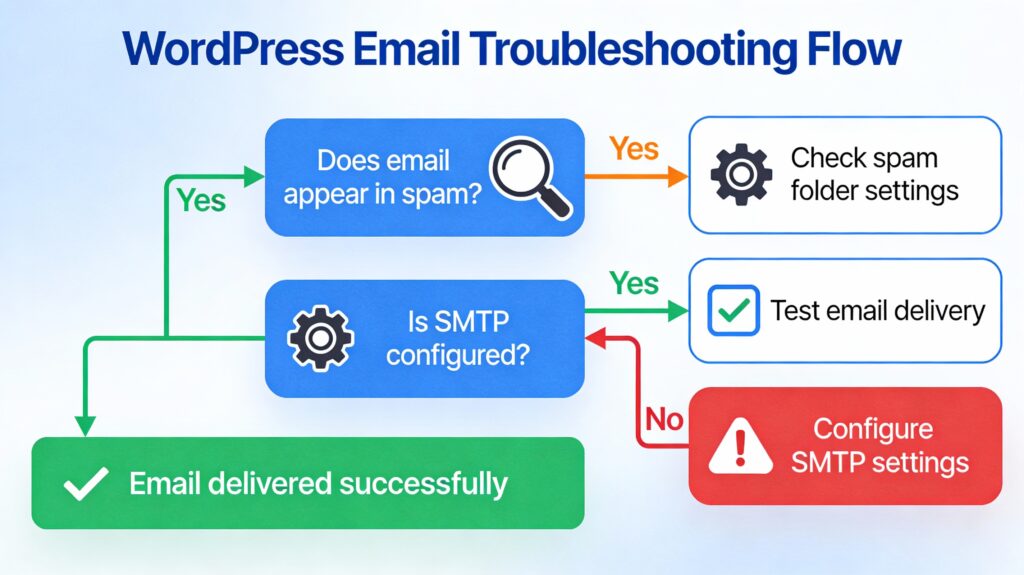
Before jumping to fixes, understand that WordPress email can fail in three distinct ways:
1. Sending Failure – WordPress never sends the email at all. The server either can’t send, is blocked by the host, or encounters a fatal error. The email exists in your form logs, but no outgoing message was ever created.
2. Delivery Failure – WordPress sends the email, but it never reaches the recipient’s mailbox. It bounces, is silently dropped, or is rejected upstream by the recipient’s email provider.
3. Spam Folder Placement – WordPress sends and the email reaches the recipient’s server, but it’s automatically sorted into spam or promotions, where it may never be seen.
Understanding which category you’re in will direct you to the right solution.
Common Causes of “WordPress Email Not Sending”
1. WordPress Using PHP mail() Without Authentication
This is most likely your issue if WordPress emails are not sending, skip to Step 5 for the solution.
By default, WordPress relies on the server’s PHP mail() function, a bare-bones method that sends emails with no authentication, encryption, or delivery proof. Think of it as handing a letter to the first person you meet and hoping they deliver it.
Modern email providers—Gmail, Outlook, Yahoo—immediately distrust unauthenticated messages. Many are silently rejected or flagged as spam. Your hosting provider may even disable mail() entirely on shared servers to prevent abuse.
Why this matters: Without SMTP authentication, your emails fight an uphill battle before they even leave your server.
2. Misconfigured “From” Email Address
If your site sends from wordpress@yourdomain.com or noreply@yourdomain.com—generic addresses that don’t exist as real mailboxes—email providers flag it as suspicious. Similarly, if your form sends from the visitor’s email address instead of a site-based address, it triggers spam filters.
Additionally, a typo in your admin email (under Settings > General) or an outdated address means WordPress notifications go nowhere.
Why this matters: Email providers verify sender addresses as part of spam filtering. Fake or mismatched addresses get blocked.
3. Hosting Provider Restrictions
Many shared hosting companies restrict or disable the mail() function, limit outbound email ports (25, 465, 587), or cap the number of emails you can send per hour. They do this to prevent their server from being blacklisted by spam abuse.
Your host may support email only through their own SMTP service, or require you to use an external provider like SendGrid or Gmail.
Why this matters: If your host blocks it, DIY SMTP won’t work. You’ll need an alternative email provider.
4. Your Server’s IP Address Is Blacklisted
Email providers maintain blacklists of servers flagged for spam activity. If your hosting provider’s IP was compromised by a previous user, or if spam emails were sent from your account, Gmail, Outlook, and Yahoo automatically reject your emails without warning. You appear to be sending, but emails are being silently discarded.
Why this matters: Even perfectly configured emails won’t reach inboxes if your server’s IP is blacklisted.
5. DNS Authentication Records Are Missing (SPF, DKIM, DMARC)
Modern email authentication requires three DNS records: SPF (sender policy framework), DKIM (domain keys identified mail), and DMARC (domain-based message authentication). These tell email providers that your domain explicitly authorizes your server to send emails and prove the message hasn’t been tampered with.
Without them, legitimate emails may be rejected, especially by Gmail and Microsoft, which increasingly enforce these standards.
Why this matters: Even with SMTP configured, emails bounce if your domain can’t prove it’s the sender.
6. Plugin Conflicts or Outdated Contact Form Plugins
Multiple plugins attempting to send emails, outdated form plugins with bugs, or plugins that override WordPress’s email settings can silently prevent deliverability. Sometimes the form displays a success message, but the email never sends behind the scenes.
Why this matters: A broken plugin can look like a server issue; troubleshooting takes time if you don’t know where to look.
Step-by-Step Fix Guide: Diagnose & Resolve
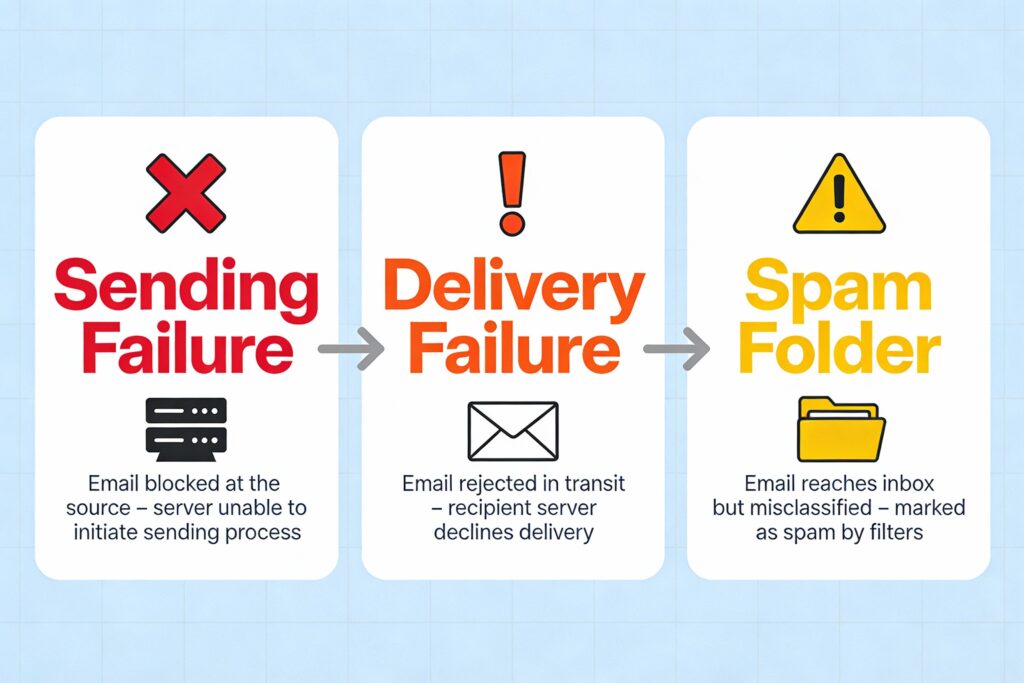
This section walks you through a linear troubleshooting flow. Start at Step 1 and work through each step in order. After each step, check whether your issue is resolved before moving to the next.
Step 1: Check Your Spam and Junk Folders
What to do:
- Go to your email provider (Gmail, Outlook, Yahoo, etc.).
- Check the spam or junk folder for emails from your site’s domain or labeled “WordPress.”
- If you find one, mark it as “Not Spam” and add the sender to your safe contacts list.
- Go back to your WordPress site, submit a test contact form, and wait 2–3 minutes.
What “good” looks like: Email appears in your primary inbox.
What “bad” looks like: Email still doesn’t arrive, or it goes straight back to spam.
If this didn’t work: Move to Step 2.
Step 2: Verify Your Admin Email Address in WordPress Settings
Many site owners don’t realize their WordPress admin email is wrong, outdated, or contains a typo. This single setting controls where WordPress sends password resets, user registration confirmations, and plugin alerts.
What to do:
- Log into your WordPress dashboard.
- Go to Settings > General.
- Look at the Administration Email Address field. Is it the email address you monitor daily?
- If it’s wrong or outdated, correct it and click Save Changes.
- Once saved, click the Lost Password link on your login page.
- Enter the admin email address and request a password reset.
- Check if the reset email arrives within 1–2 minutes.
What “good” looks like: Password reset email arrives immediately in your inbox.
What “bad” looks like: No email arrives, or it goes to spam.
Expert tip: Make sure this address belongs to your domain (e.g., admin@yourbusiness.com), not a generic Gmail or Yahoo account. Domain-based emails have much better deliverability.
If this didn’t work: Move to Step 3.
Step 3: Install and Run a Test Email Plugin
Before troubleshooting deeper, confirm that your server can send any email at all. Many site owners waste time on complex fixes only to discover their host disabled email entirely.
What to do:
- Log into your WordPress dashboard.
- Go to Plugins > Add New.
- Search for “WP Test Email” or “Check & Log Email”.
- Install and activate the plugin.
- Once activated, look for the plugin’s testing tool in your WordPress menu (usually under Tools or a dedicated plugin submenu).
- Click the email testing option and send a test email to yourself.
- Wait 2–3 minutes and check your inbox and spam folder.
What “good” looks like: Test email arrives in your inbox.
What “bad” looks like: No email arrives anywhere, or you see an error message.
If you see a “mail() disabled” or server error: This confirms your hosting provider has blocked the default PHP mail function. Skip to Step 5 to set up SMTP instead.
If the test email arrives: Your server can send. The issue is likely with authentication or spam filtering. Continue to Step 4.
Step 4: Check Your Contact Form Plugin Settings
Form plugins often have their own email notification settings that override your site defaults. Even if basic WordPress emails work, form-specific settings can break delivery.
What to do:
- In your WordPress dashboard, navigate to your contact form plugin’s settings. (This might be under Forms, Contact, Elementor, or your plugin’s name.)
- Look for Email Settings, Notifications, or SMTP sections.
- Check the “From” Email Address field. It should match your domain (e.g.,
info@yourbusiness.com), not a generic address likewordpress@hostname. - Check the “From Name” – make sure it’s professional and recognizable to readers.
- Verify the “To” Email Address is correct and monitored.
- Look for a checkbox labeled “Force From Email” or “Use This Address Globally” – enable it if available.
- Submit a test form on your site and wait 2–3 minutes.
- Check both your inbox and spam folder.
What “good” looks like: Form submission email arrives in your inbox.
What “bad” looks like: No email, or it’s in spam.
If this didn’t work: Move to Step 5.
Step 5: Set Up SMTP With Post SMTP Plugin (The Most Reliable Fix)
If you’ve made it this far, the issue is almost certainly that WordPress is using the unreliable PHP mail() function or your server has restrictions. SMTP (Simple Mail Transfer Protocol) fixes this by routing emails through a professional email provider that adds proper authentication.
What you’ll need to setup your SMTP:
- An email provider, if you’re using Google Workspace or Microsoft 365 the setup is more cumbersome, you’ll need to attain a Client ID and Client Secret by following our guide or by contacting a professional. For the easiest option, we recommend using your hosts email provider or creating a free Brevo account.
- A SMTP plugin, we use Post SMTP because it includes a completely free email log, this way you can track every email that’s sent from your website.
- We also recommend FluentSMTP which includes a free email log as well.
What to do:
- Go to Plugins > Add New in your WordPress dashboard.
- Search for “Post SMTP Plugin” or “FluentSMTP”.
- Click Install Now, then Activate.
- After activation, you’ll see a setup wizard or a link to configure the plugin.
- Click “Setup Wizard” (or similar button).
- Choose your email provider from the list:
- Gmail / Google Workspace (if you have a business Gmail account)
- Outlook / Microsoft 365 (if you have a business Outlook account)
- SendLayer, Brevo, or SendGrid (if you don’t have a Gmail/Outlook account or want a dedicated email service)
- For most small businesses, Gmail or a free Brevo account works perfectly.
- Follow the on-screen instructions to authenticate with your chosen provider. This usually involves allowing Post SMTP to access your email account or copying an API key from Google or Microsoft.
- Once connected, scroll to the “From Email” field and enter the email address you want to send from (e.g.,
info@yourbusiness.com).- Enter these details
- SMTP host (e.g.,
smtp.yourdomain.comor provider’s SMTP) - Port (often 587 for TLS)
- Encryption type (TLS/STARTTLS) (most likely TLS)
- SMTP host (e.g.,
- Enter these details
- Check the box labeled “Force From Email” to ensure all site emails use this address.
- Scroll to the bottom and click “Send Test Email”.
- Enter your email address and click the test button.
- Wait 2–3 minutes and check your inbox and spam folder.
What “good” looks like: Test email arrives in your inbox.
What “bad” looks like: Error message or no email.
Common error fixes:
- If using Gmail and you see a “permission denied” error, Google is blocking the plugin. Go to your Google Account settings, find “App Passwords”, and generate a new password for WordPress. Paste that password into Post SMTP instead of your regular Gmail password.
- If using Outlook, ensure you’ve allowed third-party access in your account security settings.
Once the test email works: Go back to your contact form, submit a test, and verify the form email now arrives. It should.
If this still doesn’t work: Your server may be blocking SMTP ports entirely, or your hosting provider is interfering. Skip to the next section.
Step 6: Check If Your Server IP Is Blacklisted
If SMTP is set up and still not working, your server’s IP address might be blacklisted by email providers.
What to do:
- Find your server’s IP address. Contact your hosting provider or go to Post SMTP > Settings – it’s often displayed there.
- Visit MXToolbox.com in your browser.
- Click the Blacklist Check tool.
- Paste your server IP address and click “Check”.
- Wait for results. If your IP appears on any blacklist (RBL, DNSBL, etc.), that’s your problem.
What “good” looks like: “Not listed” or no results.
What “bad” looks like: Your IP is listed on one or more blacklists.
If your IP is blacklisted: Contact your hosting provider’s support team. They can request removal from the blacklist, or they can migrate you to a different server IP. This is a hosting-level issue; you can’t fix it yourself.
Step 7: Add SPF, DKIM, and DMARC Records to Your Domain DNS
Even with SMTP working, emails may still go to spam or bounce if your domain lacks authentication records. This is a more technical step. IF you’re using Google Workspace, checkout this article on how to set up your Google Workspace Email that guides you step by step.
What to do:
- Log into your domain registrar account (GoDaddy, Namecheap, Bluehost, etc.).
- Find your DNS settings or DNS manager.
- Add three new TXT records to your domain:
- SPF Record:
textv=spf1 include:sendmail.mailtrap.io ~all(Replacesendmail.mailtrap.iowith your SMTP provider’s SPF value. Post SMTP or your email provider’s documentation will tell you what to use.) - DKIM Record:
Your SMTP provider (SendGrid, Brevo, etc.) will generate this and provide instructions. It’s usually a long string of characters. Copy it exactly as provided. - DMARC Record:
textv=DMARC1; p=none; rua=mailto:admin@yourbusiness.com
(Replaceadmin@yourbusiness.comwith your email.) - Save the records and wait 24–48 hours for them to propagate across the internet.
- Send another test email and check if it arrives in the inbox (not spam).
Why this is technical: You’re editing your domain’s DNS records, which control how the internet routes email and web traffic to your site. A mistake here could break your email for hours or days. If you’re not comfortable with DNS, ask your hosting provider to add these records, or have Devbo do it for you.
If this feels too risky: This is the moment to bring in a professional. DNS changes carry real risk, and one typo can silently break email for days. Many business owners find it’s worth $200–$500 in professional help to avoid that headache.
When DIY Fixes Become Risky (And When to Call a Professional)
You’ve reached the decision point. Some situations are genuinely too risky or time-consuming for non-technical business owners to handle alone.
Risk Scenarios Where You Should Hire a Professional
DNS Record Editing: Once you’re adding SPF, DKIM, and DMARC records, you’re in technical territory. A typo can silently break email for days without any warning to you. You won’t know until leads stop reaching you.
Server IP Blacklisting: If your server’s IP is blacklisted, your hosting provider needs to get involved. Depending on why it was blacklisted, the resolution could take hours or days of back-and-forth with support.
Email Provider Conflicts: If you’re on a restrictive host that blocks SMTP or limits email volume, working around those restrictions requires technical knowledge about port forwarding, API integrations, or server architecture.
Multiple Plugin Conflicts: If you have 8+ plugins and email suddenly broke after an update, isolating which plugin caused it can take 1–2 hours of manual testing.
WooCommerce or Membership Site Complexity: If you’re running eCommerce or a membership site where dozens of automated emails are involved, debugging becomes complicated fast.
Reputational Risk: If your email reputation has been damaged (spam complaints, previous hacks, blacklisting), fixing it requires strategy and monitoring. One wrong move can make it worse.
The Real Cost of Getting It Wrong
Consider this: If you spend 4 hours troubleshooting and still can’t fix it, you’ve invested 4 hours with no result. Meanwhile, leads are being lost. At $100+ per lead for most businesses, even missing 10 leads over a week costs $1,000+.
Compare that to a professional audit and fix, which typically costs $300–$800 for a one-time engagement. The math often favors hiring someone.
When Devbo Makes Sense
If any of these apply, it’s worth a quick call:
- You don’t want to risk breaking something else on your site. A professional does this dozens of times and knows exactly what can go wrong and how to prevent it.
- You’ve already spent 1–2 hours troubleshooting and nothing’s worked. Time is money. Professional diagnosis is fast.
- Your business depends on form submissions (leads, bookings, orders). If email downtime directly costs you money, paying for insurance (professional help) makes sense.
- You want this fixed today, not eventually. Professionals prioritize and work fast.
- You want long-term monitoring to prevent this again. Devbo can set up automated email testing and alerts so you never miss a broken email system again.
Here’s the truth: Whether you tackle this yourself or bring in help, the goal is the same—reliable email delivery. If you’d rather hand this off and focus on running your business, Devbo can step in, fix it completely, and make sure it doesn’t break again.
How Devbo Solves WordPress Email Problems Differently
When Devbo takes on a WordPress email issue, it’s not just about installing a plugin and calling it done. Here’s our process:
1. Root Cause Audit
We run a comprehensive diagnosis in under an hour:
- Is email sending at all?
- Is your server blacklisted?
- Are DNS records missing or misconfigured?
- Are plugins conflicting?
- Is your host restricting email?
We pinpoint the actual problem, not just treat symptoms.
2. Strategic Fix
Based on the diagnosis, we implement the best solution for your specific situation. This might mean setting up SMTP, adding DNS records, cleaning up plugins, or even moving you to a more email-friendly hosting plan. We explain every choice and why it’s the right move for your business.
3. Hardening & Prevention
One-time fixes are frustrating. We set up automated email monitoring, create backup email routes, and make sure your domain reputation stays healthy. If something breaks again in the future, you’ll know immediately—and Devbo’s monitoring catches issues before they impact your leads.
4. Documentation & Training
You’ll get a clear report explaining what was wrong, what we fixed, and how to spot email issues in the future. You’re not dependent on Devbo—you’re empowered to manage your own system.
5. Long-Term Partnership
Email is just one part of WordPress reliability. Devbo handles design, SEO, security, automation, and performance as part of a bigger strategy to grow your business. Once email is working, we keep it working.
Real-World Example: How This Plays Out
The Scenario: A dental practice in Tampa was using a contact form to book appointments. Over two weeks, they lost 8 leads—just silence from their form. They thought no one was booking. In reality, the emails were going to spam.
What We Found: Their admin email was outdated, and their hosting provider had disabled PHP mail(). They were using a generic form notification address that didn’t match their domain.
What We Fixed:
- Updated admin email to a domain-based address
- Installed and configured Post SMTP with Gmail
- Added SPF and DKIM records to their domain
- Set up email monitoring so they’d be alerted to future failures
The Result: Within 24 hours, emails were landing in the inbox. Within 30 days, they’d recovered those 8 lost leads plus booked 12 new appointments through the form. That’s a real revenue impact.
FAQs About WordPress Email Not Sending
Why does WordPress default to PHP mail() if it’s so unreliable?
WordPress was built in the late 1990s when email authentication standards didn’t exist. The mail() function was the only option back then. Today, it’s outdated, but WordPress keeps it as the default for backward compatibility. Most modern sites should use SMTP immediately.
Can I fix WordPress email problems without installing a plugin?
Technically yes, but it’s risky. You’d need to edit wp-config.php or theme files directly, and one typo breaks everything. Plugins like Post SMTP or WP Mail SMTP handle the complexity safely. Unless you’re a developer, use a plugin.
How long does it take for DNS records to start working?
Will SMTP slow down my website?
No, actually SMTP is faster than PHP mail(). It sends emails asynchronously (in the background), so form submissions feel instant to users.
I set up SMTP but emails still go to spam. What’s wrong?
SMTP fixes the sending part, but spam filtering is separate. You likely need SPF, DKIM, and DMARC records set up on your domain. These prove to email providers that you’re a legitimate sender.
What’s the difference between a bounce and an undelivered email?
A bounce is when an email is rejected immediately (usually because the recipient address doesn’t exist). An undelivered email is when it’s silently dropped or lost somewhere in transit. Both are bad, but bounces are easier to diagnose.
Can I use my personal Gmail account for WordPress emails?
Yes, but it’s not recommended for production sites. Business emails (Gmail Workspace, Microsoft 365) are more reliable. Also, if you ever lose access to your personal Gmail, your site’s email breaks immediately.
My host says they don’t support SMTP. Is there a workaround?
Yes. Use an API-based provider like Brevo (formerly Sendinblue) or SendGrid instead. These don’t rely on SMTP ports, so host restrictions don’t apply. Post SMTP supports both.
How much will it cost to hire a professional to fix this?
Most WordPress professionals charge $200–$800 for a complete email audit, fix, and prevention setup. This is usually a one-time cost. Monthly monitoring (optional) might add $50–$100/month. Compare that to the cost of lost leads—the ROI is obvious.
What should I do if Devbo is fixing this for me? Do I need to be present?
No. Devbo will handle everything remotely. We’ll keep you updated via email and phone, and we’ll test everything thoroughly before handing it back to you. Most fixes are done within 24 hours.
Next Steps: Take Action Today
Your WordPress email problem is solvable. You have two clear paths:
Path 1: DIY Troubleshooting
Start with Step 1 above and work through at your own pace. If you get stuck or decide it’s too technical, no judgment—just move to Path 2.
Path 2: Let Devbo Handle It
If you’d rather get this off your plate today and know it’s done right, book a quick call with Devbo. We’ll diagnose the issue, explain what’s wrong, and give you a clear price for a complete fix. Most small business owners find it’s worth the peace of mind.
The cost of not fixing this? Every day email is broken, you’re losing leads. Based on the data, the average small business loses $50,000+ per month when communication channels fail. Even one week of broken email can cost you real money.
Your move: Pick a path, take action this week, and get your leads flowing again.
Ready to Fix This Today?
If you’ve read this far and realized you’d rather have a professional handle it, Devbo is here. We’re a Florida-based WordPress agency that specializes in fixing exactly these kinds of problems for small business owners nationwide.
We’ve fixed hundreds of broken email systems, and we do it fast, transparently, and without breaking anything else on your site.
Book a 15-minute call with Devbo to discuss your situation, get a diagnosis, and find out how quickly we can have your emails working. No pressure—just expert advice from someone who’s done this dozens of times.